
Create a task by asking
The easiest way is to tell Marky what you want and when, in any chat:Every Monday at 9am, write three Instagram post ideas for Sunrise Yoga, a small yoga studio in Austin, and post them here.Marky writes detailed instructions for the task, sets the schedule, and confirms when the first run will be. The task runs in the same chat.
Create or change a task yourself
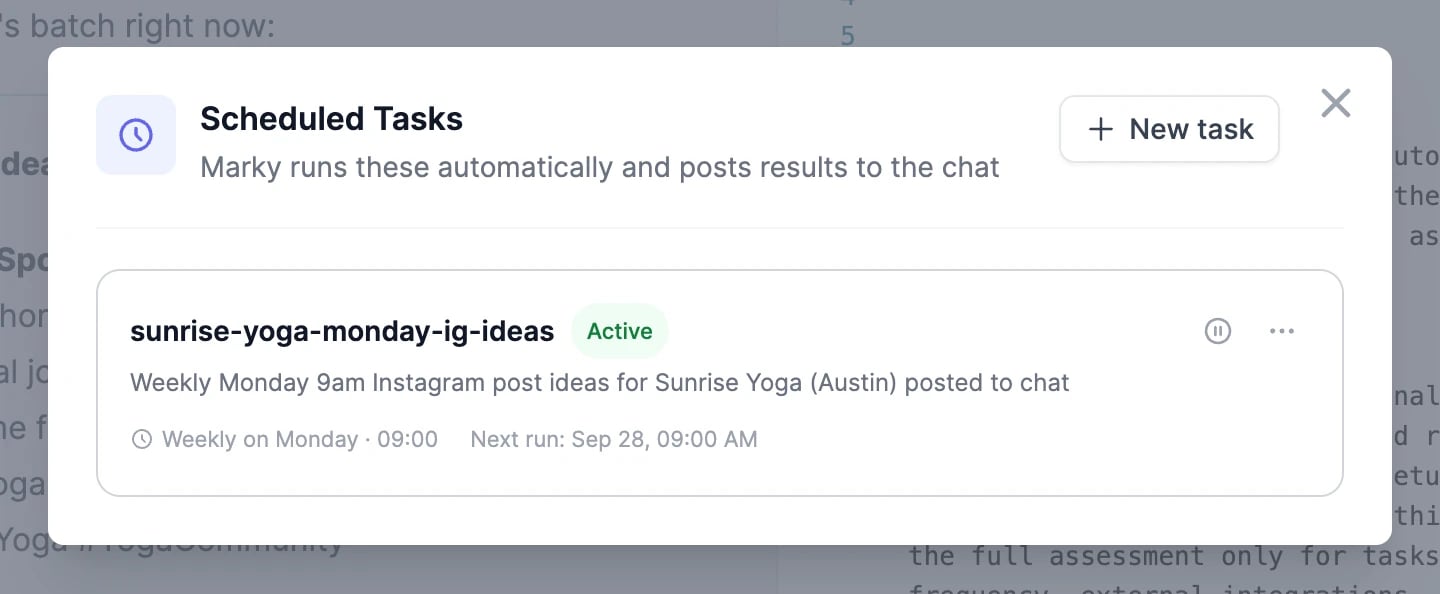
Click Scheduled in the Marky sidebar to see all your tasks.- New task creates one from scratch.
- The pause button stops a task without deleting it. Click it again to resume.
- The ⋯ menu has Edit, View chat (opens the chat where the results go), and Delete.
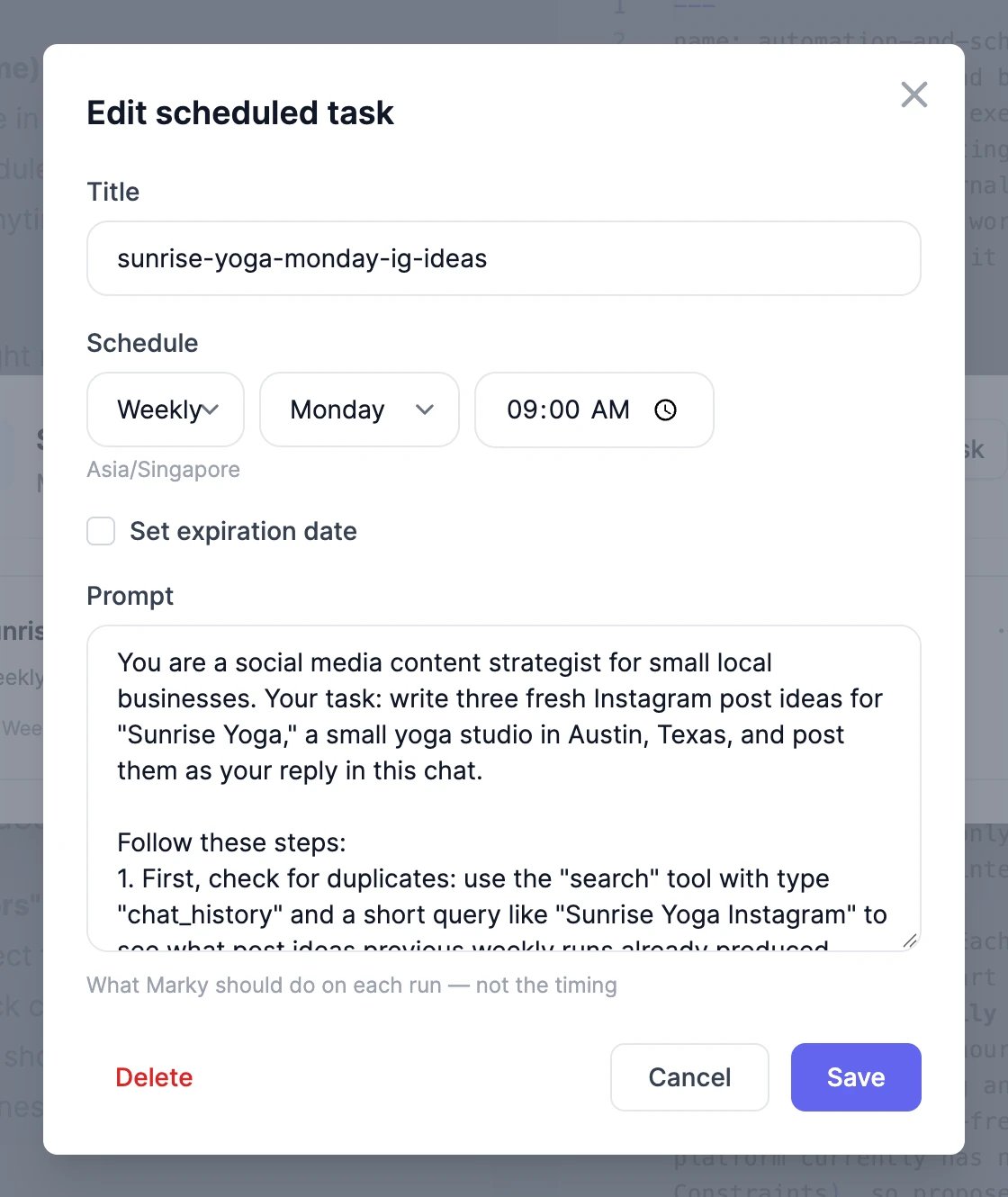
When you edit a task, you also get:
- Set expiration date, which stops the task after a date, for example at the end of a campaign.
- Custom, for schedules the simple options can’t show, such as “weekdays at 8:30” that Marky set up. It’s a cron expression with seconds first:
0 30 8 * * 1-5means 8:30 on weekdays. Tasks that repeat every few minutes or hours show Every N minutes instead.
Write good task instructions
At run time you’re not there to answer questions, so the prompt has to stand on its own. When Marky creates a task for you, it writes the prompt this way. When you write one yourself, include:- The goal and who it’s for: “Write three Instagram post ideas for Sunrise Yoga, a small yoga studio in Austin.”
- Where to look: the websites, files, or connected apps to use.
- How to avoid repeats: “Check the earlier runs in this chat and don’t repeat an idea.”
- The format of the result: a table, three bullets, a one-page report.
Limits and costs
- You can have up to 10 active tasks. Pause or delete one to add another.
- A task can run at most every 5 minutes. Daily or weekly schedules suit most work.
- Each run uses words like any other message to Marky, plus credits for anything it generates, such as images. Frequent schedules add up, so check Usage after the first few runs.
Results and emails
- The result of every run appears in the task’s chat. A task you create by asking runs in that chat. A task you create with New task gets a chat of its own, named after the task. Open it with View chat or from the email.
- After each run, you get an email that the task ran, with a link to the result.
- If a run fails, for example because you’re out of words, you get one email about it. You won’t get another until the task runs successfully again.
Can a task use my Gmail, Calendar, or other apps?
Can a task use my Gmail, Calendar, or other apps?
Yes. A scheduled run can use every app you’ve connected in Connectors, so a task like “every morning, summarize the unread emails from clients” works. See Connectors.
A task ran at the wrong time
A task ran at the wrong time
Tasks run in the time zone shown under Schedule when you edit the task. If it’s wrong, edit the task and save it again, or tell Marky the time zone you want.
Can Marky ask me questions during a run?
Can Marky ask me questions during a run?
No. Scheduled runs happen without you, so Marky can’t ask for approval or clarification. If something needs your input, it says so in the result.
Connectors
Let Marky work with Gmail, Google Calendar, Notion, and more.
Usage
See how many words your tasks use.